How to Reset Your KitchenAid Dishwasher
Learn how to reset your KitchenAid dishwasher with a clear, step-by-step approach. This educational guide covers power cycling, panel resets, and model-specific tips to resolve common startup and cycle errors.


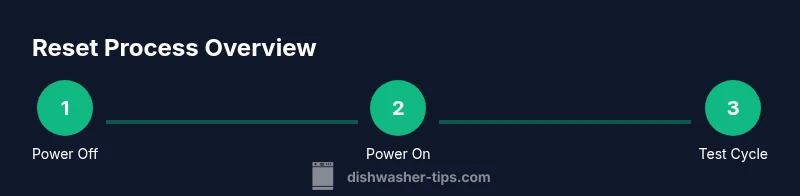
You can reset your KitchenAid dishwasher by performing a power cycle and, if needed, a control-panel reset sequence. This helps resolve false error codes, stuck cycles, or a dishwasher that won’t start. Begin by unplugging or turning off the circuit breaker for 60-90 seconds, then reconnect power and run a test cycle.
Why Resetting Your KitchenAid Dishwasher Can Fix Common Issues
According to Dishwasher Tips, resetting a KitchenAid dishwasher can clear minor faults without disassembly, preserve the appliance’s electronics, and help restore normal operation after a fault code or a stalled cycle. Many homeowners encounter problems like the unit not starting, the display freezing, the rinse cycle running endlessly, or a door latch that seems stubborn. In most cases, these symptoms are caused by a temporary glitch in the control board, a stuck relay, or a safety feature that has triggered by accident. A simple reset forces the microprocessor to reboot and clears transient fault states, bringing the machine back to a known baseline. It is safer and quicker than opening panels or fiddling with water lines, especially for renters who may not have permission to perform more invasive checks. Before you reset, make sure the dishwasher is not in a hazardous state (for example, a leak or the door cracked). If you recently installed new detergent or changed the water softener settings, resetting can also help confirm that the new configuration is being read correctly. Keep in mind that a reset will not fix mechanical failures, such as a broken pump or a clogged spray arm, and persistent problems after resetting likely require service.
Power Cycle vs Control-Panel Reset: Two Paths
There are two distinct reset paths for most KitchenAid models. The simplest is a power cycle: cut power to the unit, wait a moment, then restore power and observe if the dishwasher resumes normal operation. The second path is a soft reset using the control panel. This relies on model-specific button combinations or sequences designed to reboot the microcontroller without removing power. Because these sequences vary by model and production run, you should consult your user manual or KitchenAid's support site for the exact steps. In general, power cycling addresses transient faults, while a panel reset addresses panel-specific lockups or error codes that the software is stuck on. If your model supports a panel reset, it’s typically faster and avoids a full power cycle, but not all units include this option.
Step-by-Step: Power Cycle (Power Off/On)
- Locate the power source: unplug the unit from the wall outlet or switch off the household circuit breaker that serves the dishwasher. 2) Wait: leave power off for 60–90 seconds to allow capacitors to discharge and the control board to reset. 3) Restore power: plug back in or flip the breaker to the ON position. 4) Run a quick test: start a normal wash to see if the cycle begins and proceeds normally. 5) Observe: if the problem recurs, proceed to a soft reset if your model supports it as described in the next section.
Step-by-Step: Soft Reset Using the Control Panel
- Identify the reset path: check the user manual for the exact button sequence compatible with your model. 2) Initiate the reset: use the recommended two-button combo or hold the reset command for the specified duration (commonly 3–5 seconds) until the display blinks or the cycle indicator resets. 3) Confirm reset: release the buttons and wait a few seconds for the panel to reflect a ready state. 4) Run a cycle: start a normal wash and verify the display, lights, and motor behave normally.
How to Verify After a Reset
After performing a reset, confirm the dishwasher is ready for use by listening for the pump and motor startup, checking that the door latch locks, and observing the display for any error codes. Run a short rinse or quick wash to ensure spray arms rotate freely and water reaches every rack. If the display still shows an error, note the code and consult the manual or KitchenAid support to interpret it. Keeping a log of codes and reset attempts can help when you contact support.
Troubleshooting if Reset Doesn't Resolve the Issue
If a reset does not fix the problem, the issue may be mechanical or related to water supply, drain, or sensors. Check the door latch for alignment, ensure the water inlet valve opens, inspect the drain hose for kinks, and verify the filter and sump are clean. Inspect the float switch to ensure it moves freely and isn’t blocked by debris. If you continue to see error codes, contact service or a technician. Do not bypass safety mechanisms or continue operating the unit when it leaks or makes abnormal noises.
Safety Precautions and Best Practices
Always disconnect power before inspecting electrical components or water lines. Use dry hands and keep the area around the unit clean and dry to reduce shock risk. If you must reach inside the cabinet, keep tools minimal and avoid forcing components. Never operate the dishwasher when the door seal or latch appears damaged. For renters or in homes with limited access to the circuit panel, prefer power cycling as the first line of troubleshooting, reserving panel resets for model-supported scenarios.
Maintenance Habits to Reduce Future Resets
Regular cleaning of the filter, spray arm, and sump helps prevent clogs that trigger fault codes. Use the correct dishwasher detergent and avoid overloading the bottom rack, which can strain the pump. Periodically inspect inlet hoses for cracks and ensure the drain path remains unobstructed. Schedule professional checks if you notice persistent electrical faults or unusual noises. A proactive maintenance routine lowers the chance of frequent resets and keeps your KitchenAid dishwasher performing at its best.
What to Do If Your Dishwasher Still Misbehaves
If resets do not resolve the issue, it’s time to seek professional help. Document the steps you’ve taken, including the exact reset sequence and any error codes observed. Contact KitchenAid support or a local appliance technician with this information to expedite diagnosis. In many cases, a repair or part replacement (like a sensor or control board) is required to return the unit to full function.
Tools & Materials
- Power outlet or circuit breaker(Access to unplug or switch off power)
- Owner's manual for your KitchenAid model(Model-specific reset steps and safety instructions)
- Clean, dry cloth(Optional for wiping surfaces after power cycling)
- Flashlight(Useful when inspecting under the sink or inside cabinet)
Steps
Estimated time: 25-35 minutes
- 1
Power off the unit
Unplug the dishwasher from the wall outlet or switch off the dedicated circuit breaker panel serving the appliance. This removes all power and ensures safe handling.
Tip: If you can’t reach the outlet, switch off the circuit breaker at the main panel and label the breaker for easy restoration. - 2
Wait to discharge
Allow 60–90 seconds of no power to let capacitors reset and internal microprocessors to reset.
Tip: A longer wait (up to 2 minutes) won’t hurt and can improve the reset reliability on older boards. - 3
Restore power and observe
Reconnect power by plugging in or turning the breaker back on, then watch for a normal boot or the display lighting up.
Tip: If nothing happens, double-check the breaker and outlet integrity to rule out a supply issue. - 4
Test a quick cycle
Start a normal cycle to see if the dishwasher responds and completes without error codes.
Tip: Do not load dishes deeply crowded; keep some space for spray clearance during the test. - 5
Attempt a panel reset if available
If your model supports a panel reset, follow the manufacturer’s sequence (often a two-button hold for a few seconds) until the display resets.
Tip: Refer to the manual for exact button names and duration; sequences vary by model. - 6
Check basic functions
Listen for the pump, observe door latch engagement, and ensure water fills properly. Confirm no leaks are present.
Tip: If the door doesn’t latch, do not force; resolve latch alignment before attempting another cycle. - 7
Inspect for obvious issues
Check the filter, spray arms, and sump for clogs. Remove debris with a soft brush or cloth.
Tip: Never use metal tools on plastic components to avoid scratches or damage. - 8
Record any codes
Note any error codes shown on the display. Cross-check codes with the manual or support site.
Tip: A quick photo of the display can help technicians diagnose the issue later. - 9
Call for service if unresolved
If the reset doesn’t fix the issue, arrange professional service. Ongoing leaks or failures may indicate a failed component.
Tip: Ask for a diagnostic visit and confirm warranty status if applicable.
People Also Ask
Is resetting the dishwasher the same as a factory reset?
No. A reset typically reboots the control board and clears temporary faults. A factory reset would restore all settings to default and is not commonly user-accessible on most models. Always consult the manual before attempting a factory reset.
A standard reset reboots the control and clears temporary faults. Factory resets aren’t usually available to users, so check the manual if you think a full reset is needed.
Will resetting clear all error codes and reminders?
Resetting can clear transient error codes, but persistent hardware or component faults may still display codes. If codes persist after reset, note them and consult the manual or support.
A reset clears temporary codes, but ongoing faults may require professional help.
How long should I wait after powering down before turning it back on?
Waiting 60–90 seconds is typically sufficient to reset the control board. A longer wait won’t harm the unit if you want to be thorough.
Usually around one minute is enough for a reset.
What if the display stays frozen after a reset?
If the display remains unresponsive, disconnect power again and recheck the circuit. If it still won’t respond, a panel or control board issue may exist, and professional service could be needed.
If the display is still stuck after reset, you may need professional help.
Do I need any tools to perform a reset?
Usually no tools are required beyond access to a power source. If you must inspect wiring, exercise caution and consider calling a professional.
Typically, you don't need tools—just power access. For wiring checks, contact a pro.
When should I schedule service after a reset?
If resets do not fix the issue within a few tries or the unit leaks, makes strange noises, or won’t drain, schedule service promptly to avoid further damage.
If a reset doesn’t fix it after a couple of tries, call for service.
Watch Video
What to Remember
- Power cycle first for quick glitch resolution
- Use model-specific panel reset if available
- Verify after reset with a test cycle
- Inspect for leaks or clogs if issues persist
- Know when to call a technician